

Title

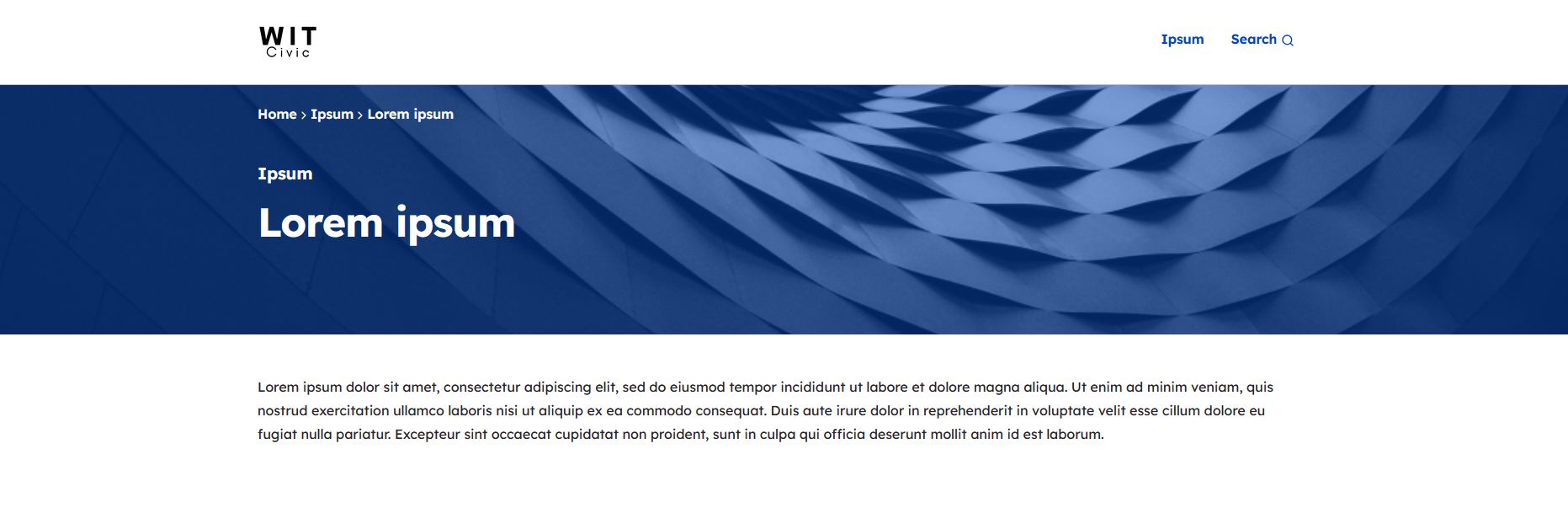
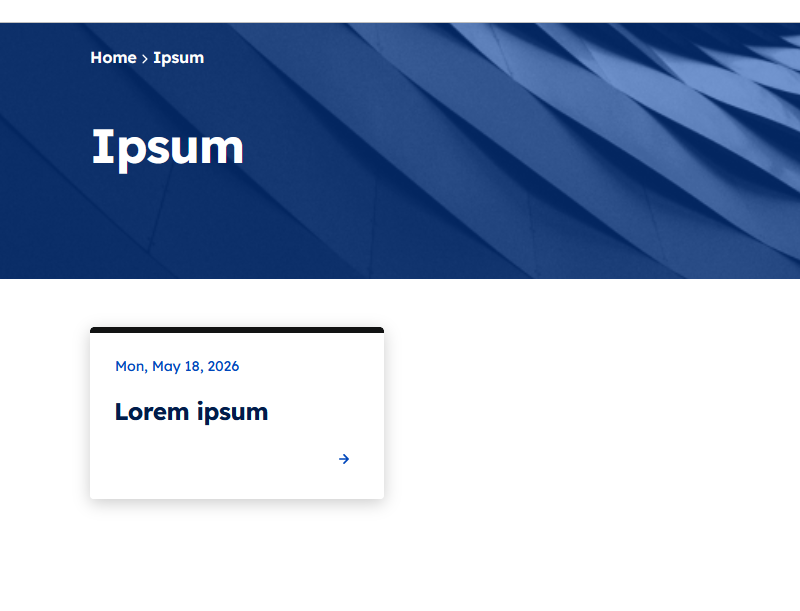
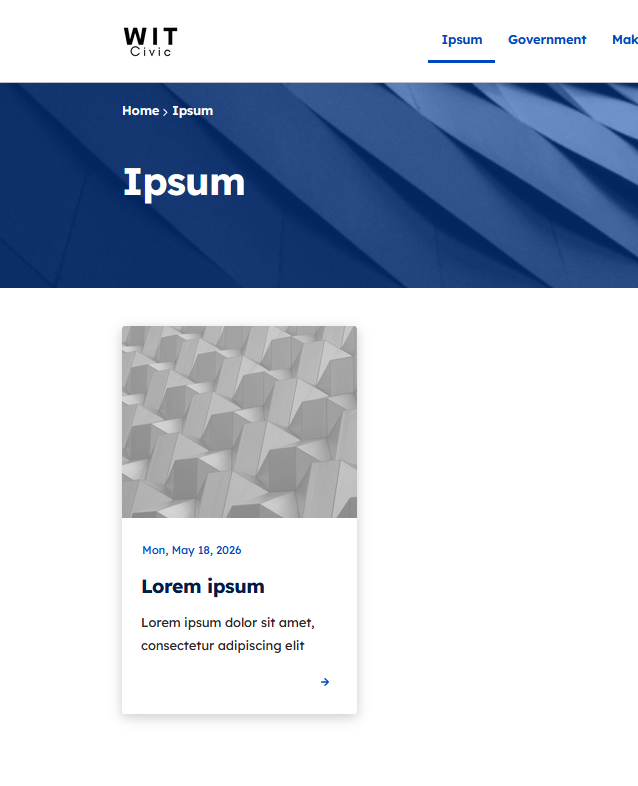
Title will be shown on the banner and on the promo cards. as shown below:
Banner is Lorem ipsum
Ipsum is the breadcrumb
Main Page:
Promo Card:
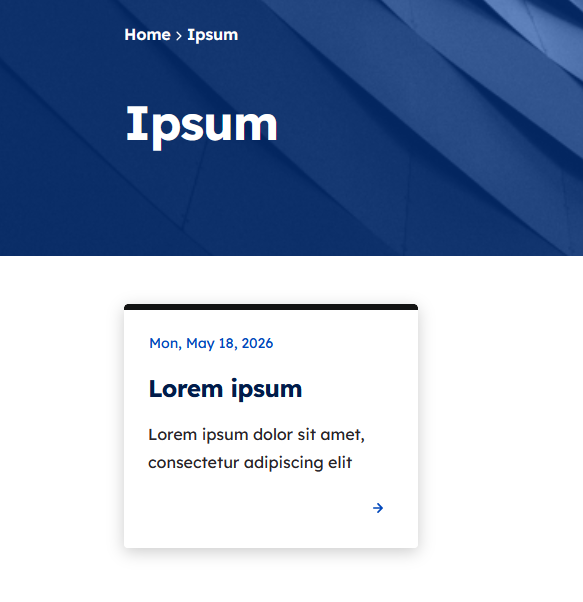
Summary
Summary will be shown in teasers or card, as shown below:

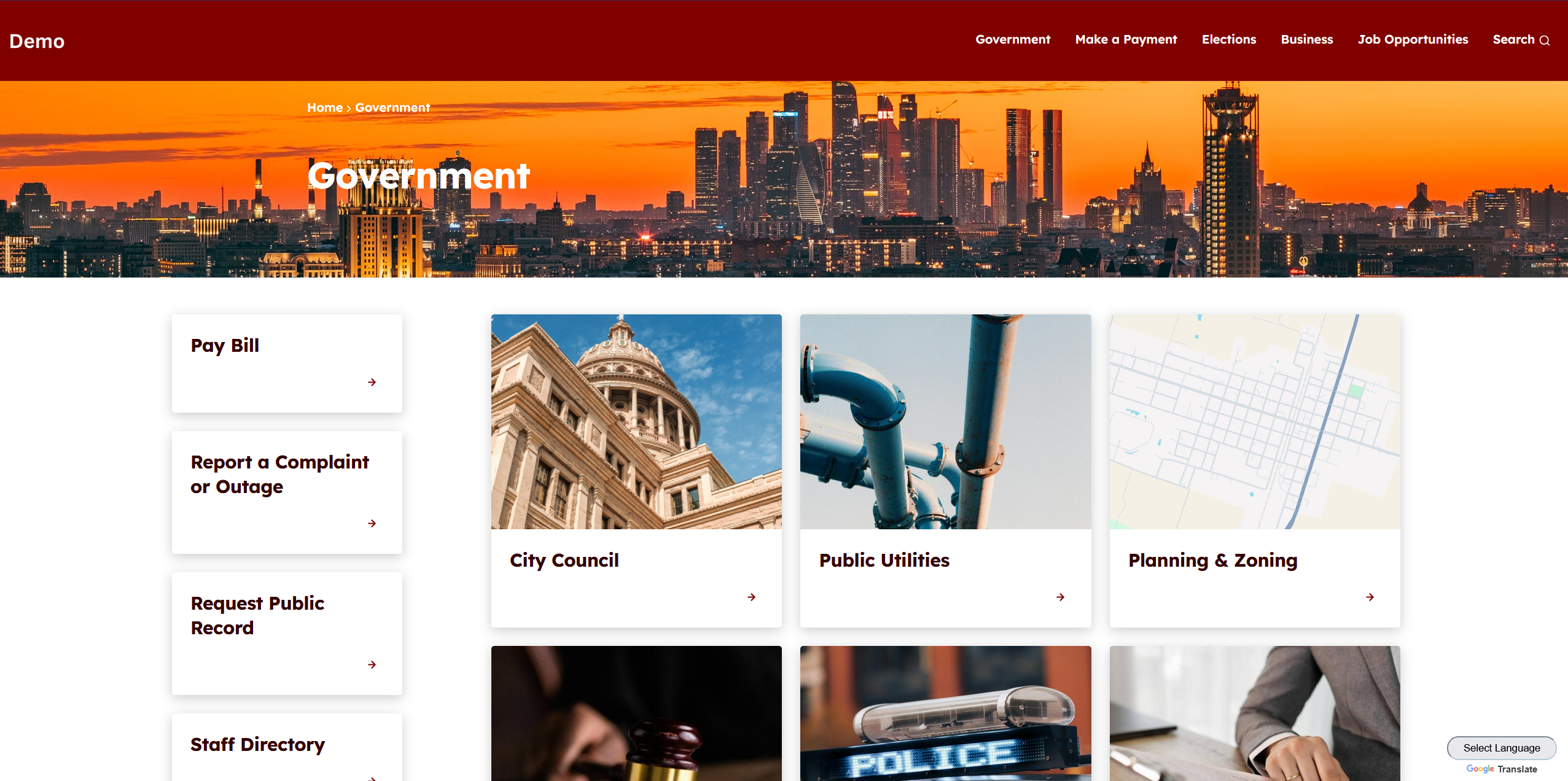
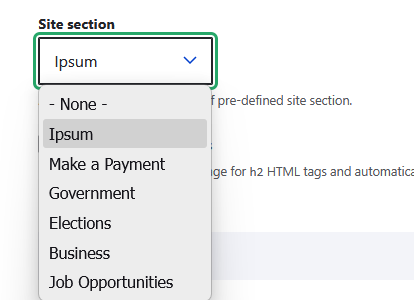
Site Section
Site section determines where this page appears in the navigation menu. For example, selecting 'Government' places this page under the Government section of the site. (This is for page that are not using drop-down and are using automated list in order to show node such as demo.witcivic.com/government shown below)
Administrative tool: User Page:

For Drop-down menu such as demo2.witcivic.com shown below:
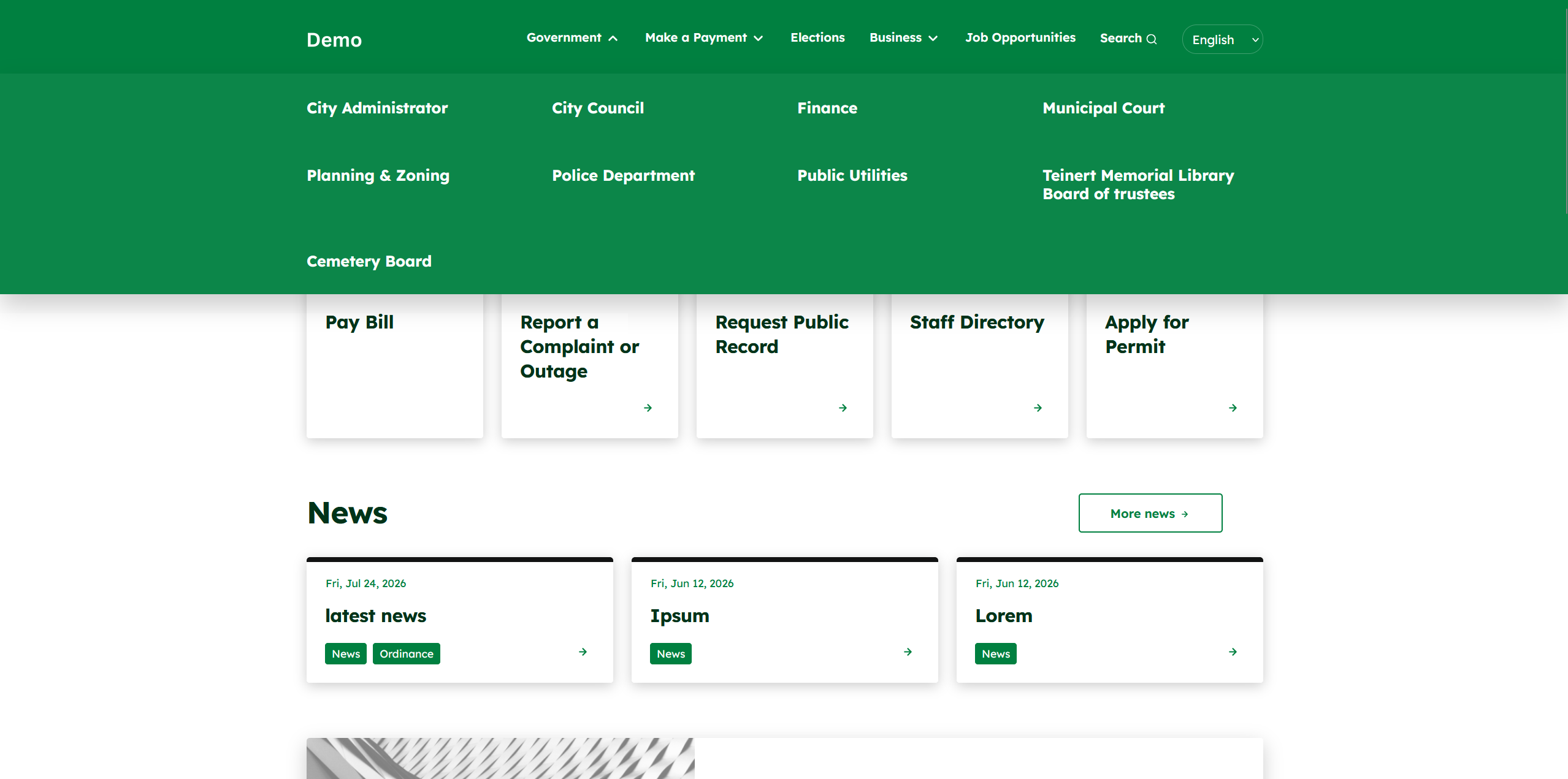
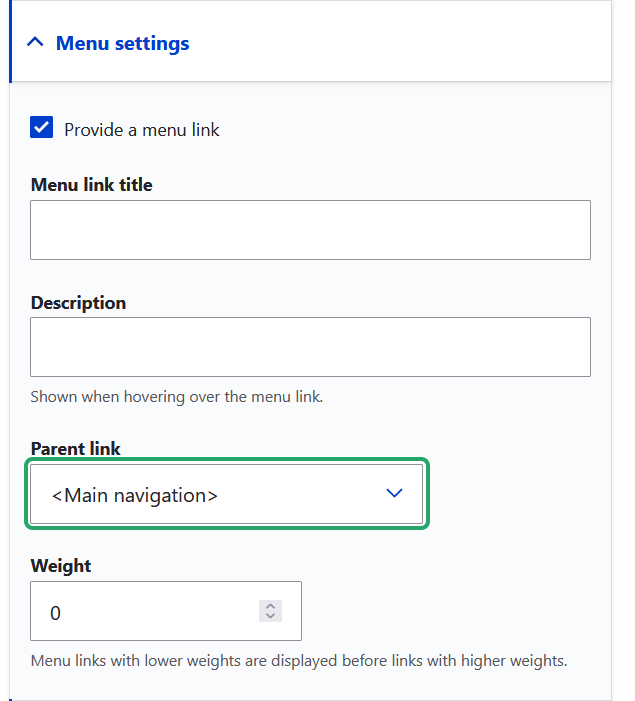
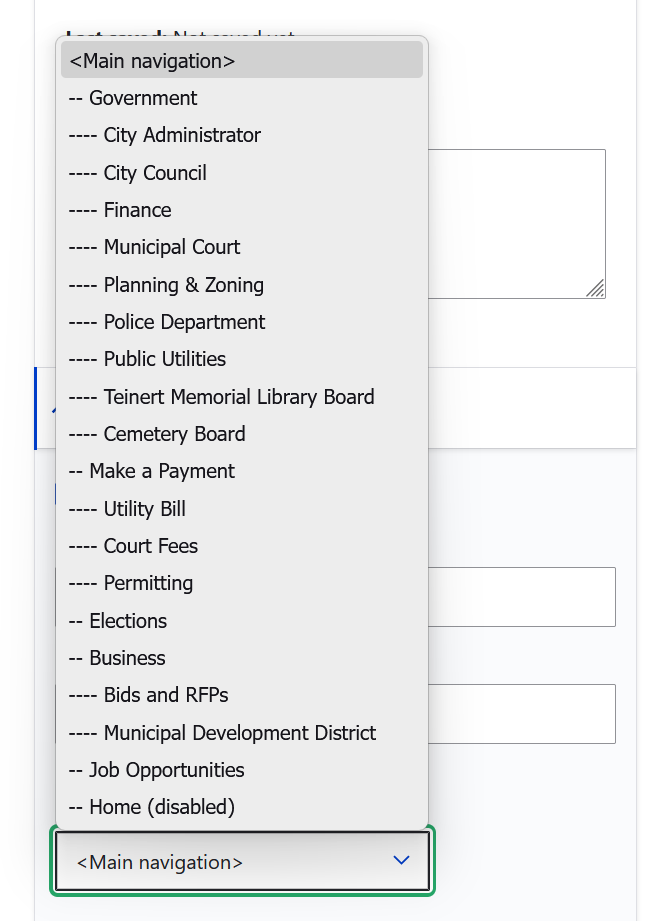
Use the provided Menu settings located on the right in order to add new page in the navigation. In the example, choosing government will make a menu in the section Government such as City Administrator. Choosing Finance would make a child for Finance and will be below Finance.
Show Table of Contents
When enabled, Table of contents are created automatically when detecting Heading 2 in the Content/Body.
Table of Contents has been used in this page as an example
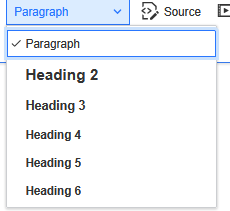
Component
Components will be explained in another section.
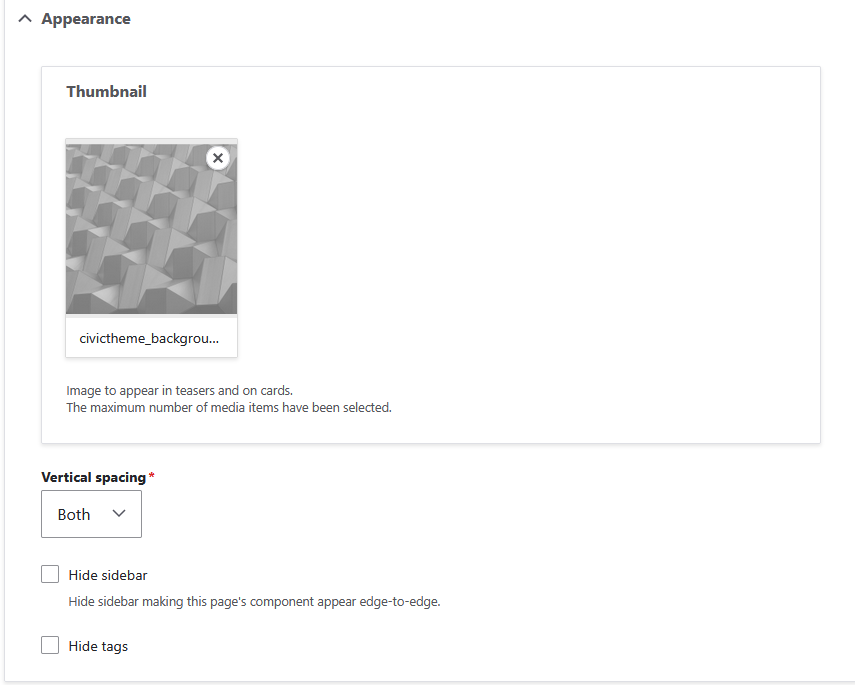
Appearance
Thumbnail is the preview image shown when this page appears in Site section/automated list.
Vertical spacing controls the amount of space added above or below the component, helping to maintain consistent separation between content sections on the page.
Menu Setting
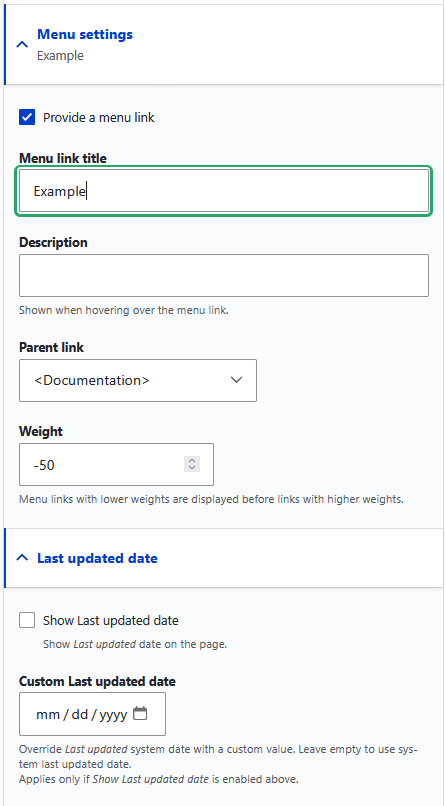
Provide a menu link - Checkbox to enable/disable creating a menu link for this item. Uncheck it if you don't want this content to appear in any menu.
Menu link title - The text that will show up in the menu for visitors to click.
Parent link - Determines where this item sits in the menu hierarchy. Selecting a parent (e.g., <documentation>) makes this a sub-item (child) nested under that menu, instead of appearing as a top-level link.
Weight - Controls the ordering of items within the same menu level. Lower numbers float to the top, higher numbers sink to the bottom. Items with equal weight are sorted alphabetically.
Example of menu link is the current menu used to navigate this documentation on the left.
Last updated date
Show Last updated date - Checkbox to display the "last updated" date on the page for visitors to see.
Custom Last updated date - Lets you manually set a specific date instead of using the system's automatic last-modified date. Leave blank to use the default system date.
URL redirects
Lets you redirect an old URL (like /basic-pages-creation) to this page, so anyone visiting the old link automatically lands here instead. Click Add URL redirect to set up a new one, or use Edit to change an existing one. Links open in the current window.
Simple XML Sitemap (can be safely ignored)
Controls whether this page appears in the sitemap search engines use to crawl your site.
Index this page / Do not index - Include or exclude this page from search engine results.
Priority - How important this page is compared to others (0.0-1.0).
Change frequency - How often this page's content changes, so search engines know how often to re-check it.
Include Images - Whether to list this page's images in the sitemap too.
Regenerate all sitemaps after hitting Save - Updates the sitemap immediately instead of waiting for the next scheduled refresh.
URL alias
Generate automatic URL alias - Let the system auto-create the page URL based on its title, instead of setting one manually. (Leave it on, unless manual insertion is necessary)
URL alias - The actual web address for this page (e.g., /documentation/basic-pages-creation). Only editable if automatic alias is unchecked.
Authoring information (can be safely ignored)
Authored by - The username of whoever created this content. (not visible to visitor)
Authored on - The date and time the content was created. (not visible to visitor)
Promotion options (can be safely ignored)
Promoted to front page - Show this content on the site's homepage. (This can be safely ignored, as you need a "view" with promotion)
Sticky at top of lists - Pin this content to the top of listing pages, above other items.