
Edit Menu Links
Used to manage the links that appear in the site's navigation menus. Click List links next to a menu to view, add, edit, or reorder its links.
Main navigation - The site's primary navigation menu (site section links). To create new Main navigation follow the Step-by-step instructions are below.
Quick Link Footer - Footer links for general site information.
Site Link Footer - Additional footer navigation links.
How to create a new site section (For non drop down navigation)
Navigate to the dashboard, and click on Edit Site Section, then click on Add term and choose a name for the site section, here I will choose Ipsum.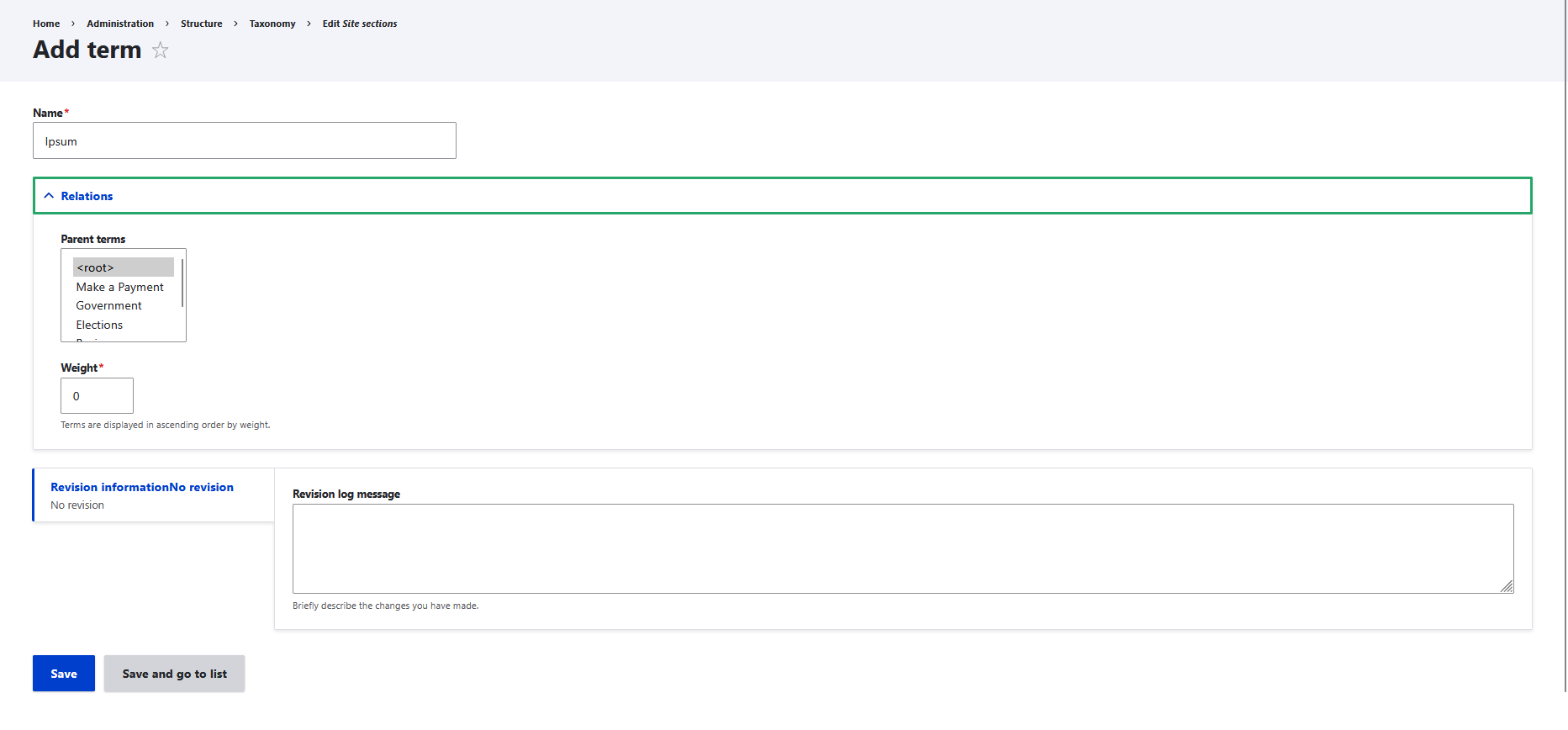
Parent terms are used to make children of the main navigation, we will not be using this as we are making a parent. Click on Save and navigate to Create Page, to create the main page for Ipsum. Site section need to be None, as Ipsum is the main site section.
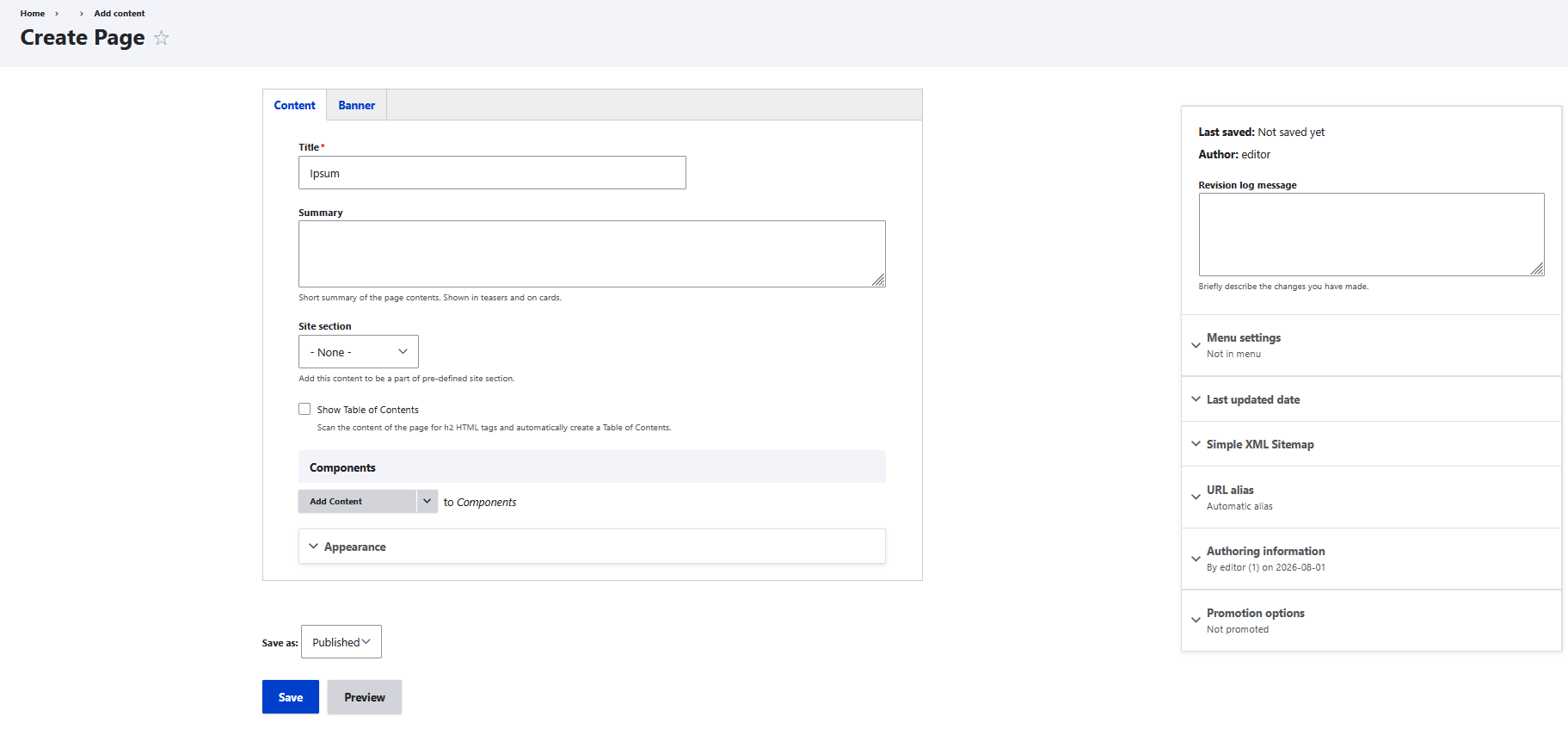
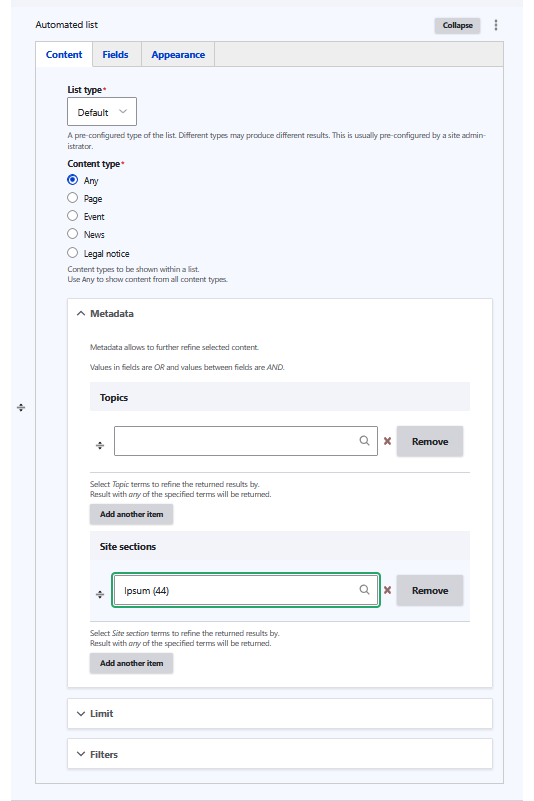
An Automated list can be added in order to automatically show page that are under the Ipsum site section. Refers to Automated list in component for deeper understanding.
Navigate to Main navigation through Edit Menu Link -> Main Navigation
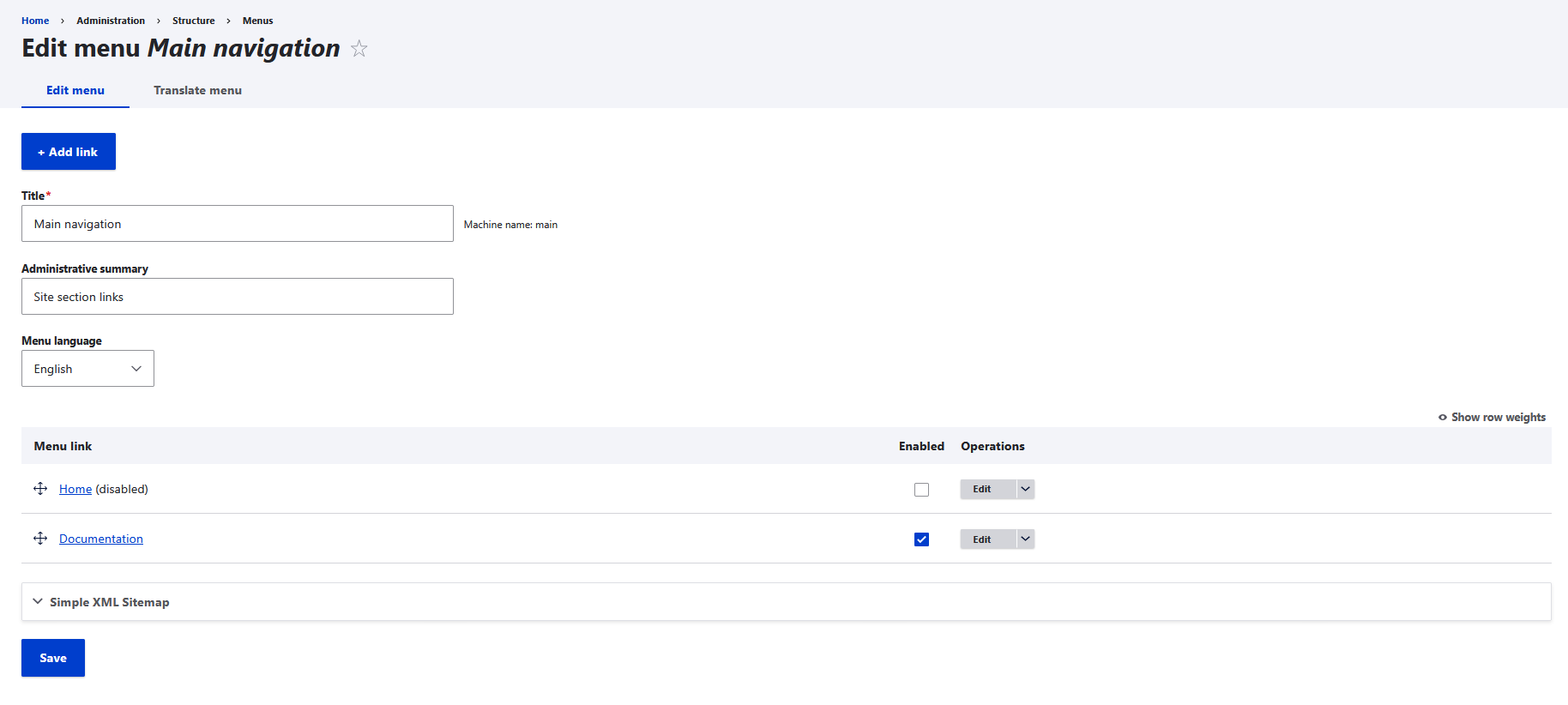
Once you are at this screen click on Add Link, then type the site section name, Ipsum for example here. Then in Link add the page of the site section, Ipsum as an example here.
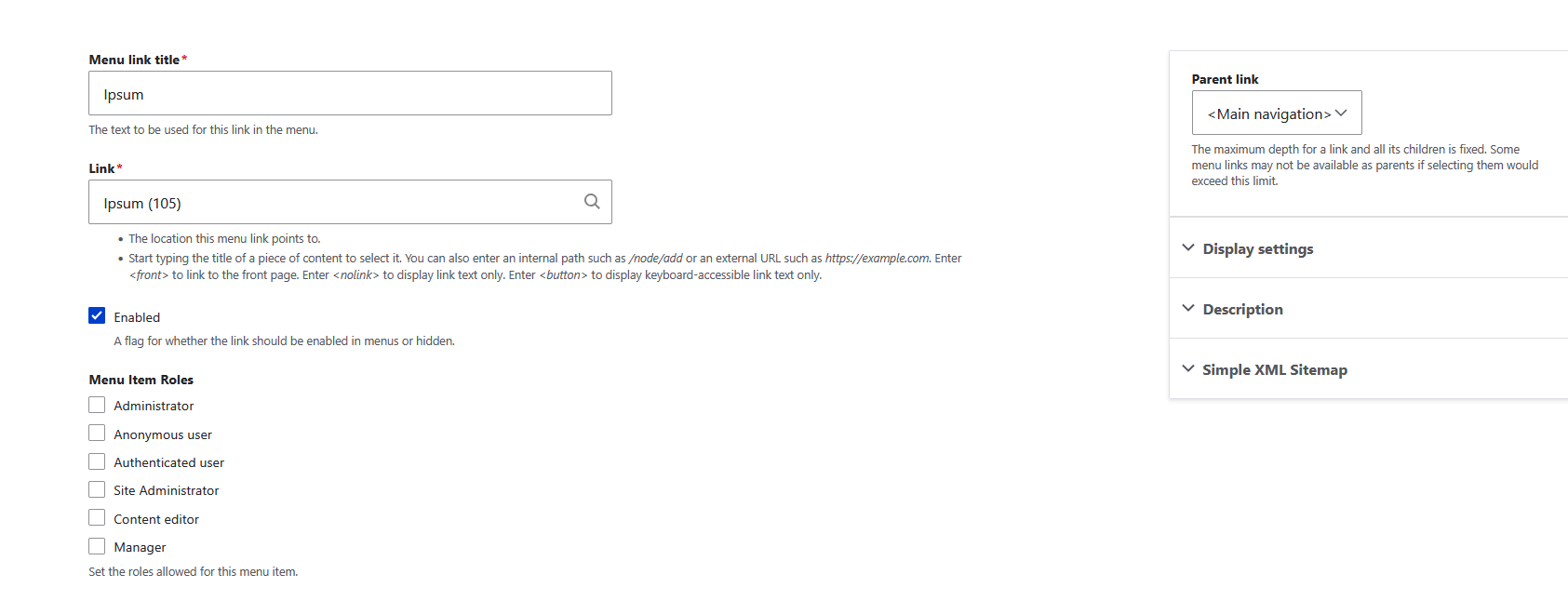
Now Ipsum should be visible on the main navigation. When navigating to Ipsum, there should be a page Ipsum and naturally it will be empty as there in no new addition. To populate the new site section, create your page while choosing new the site section in the drop down.
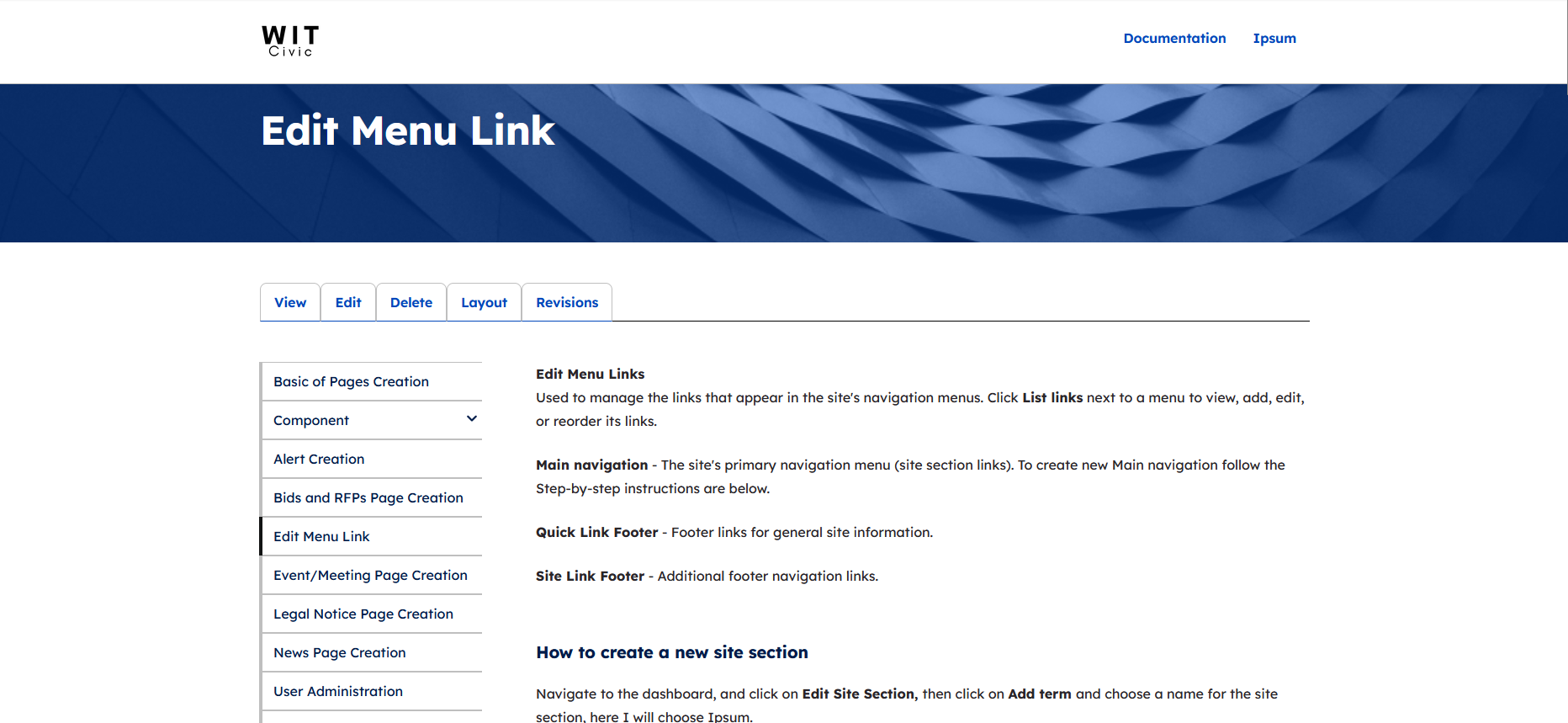
For Menu that use drop down such as demo2 shown below:
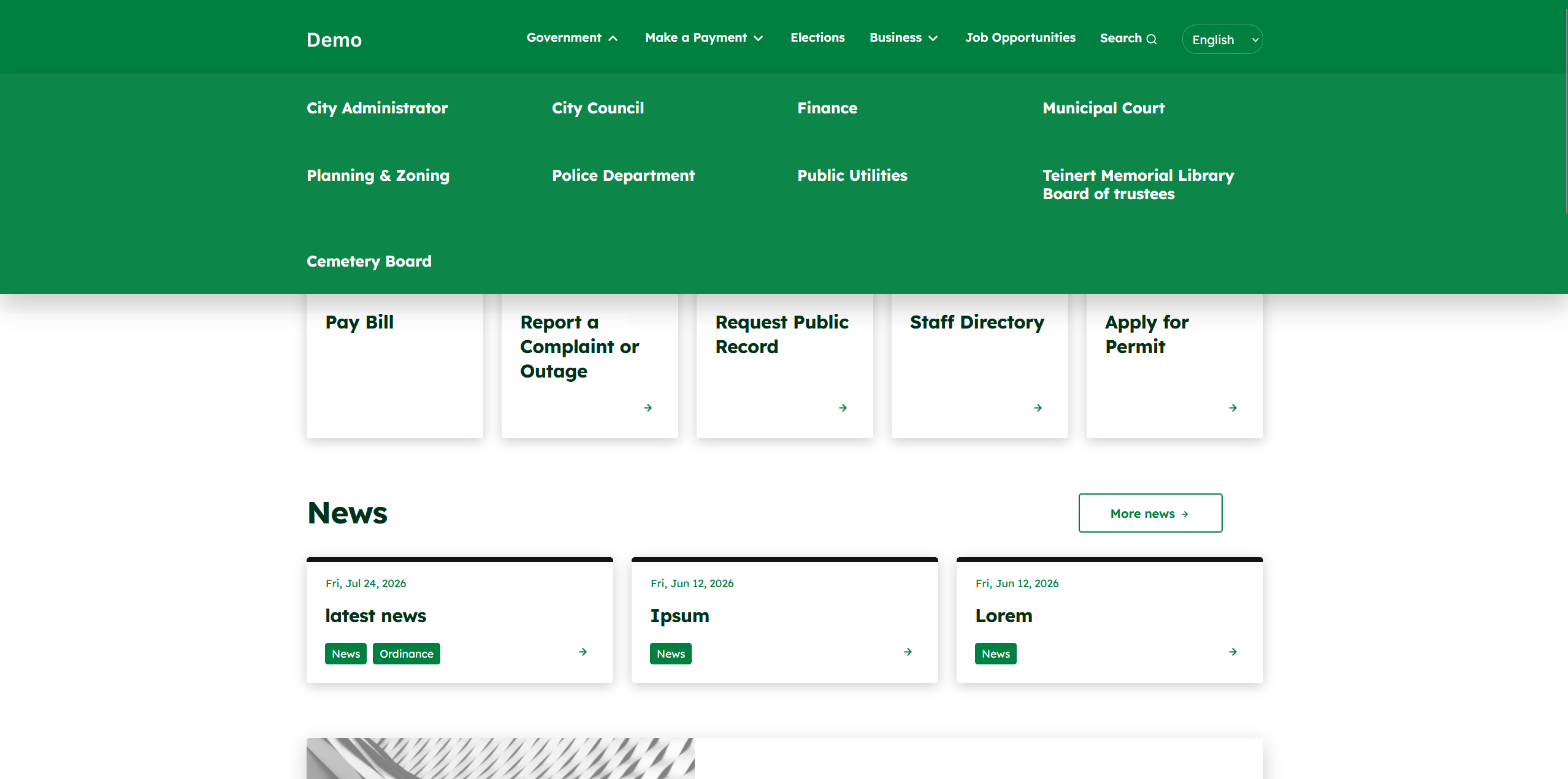
On the Dashboard, click the Edit Menu Link and click Edit Menu for "Main navigation"

In the Edit menu Main navigation, the main navigation can be rearrange.
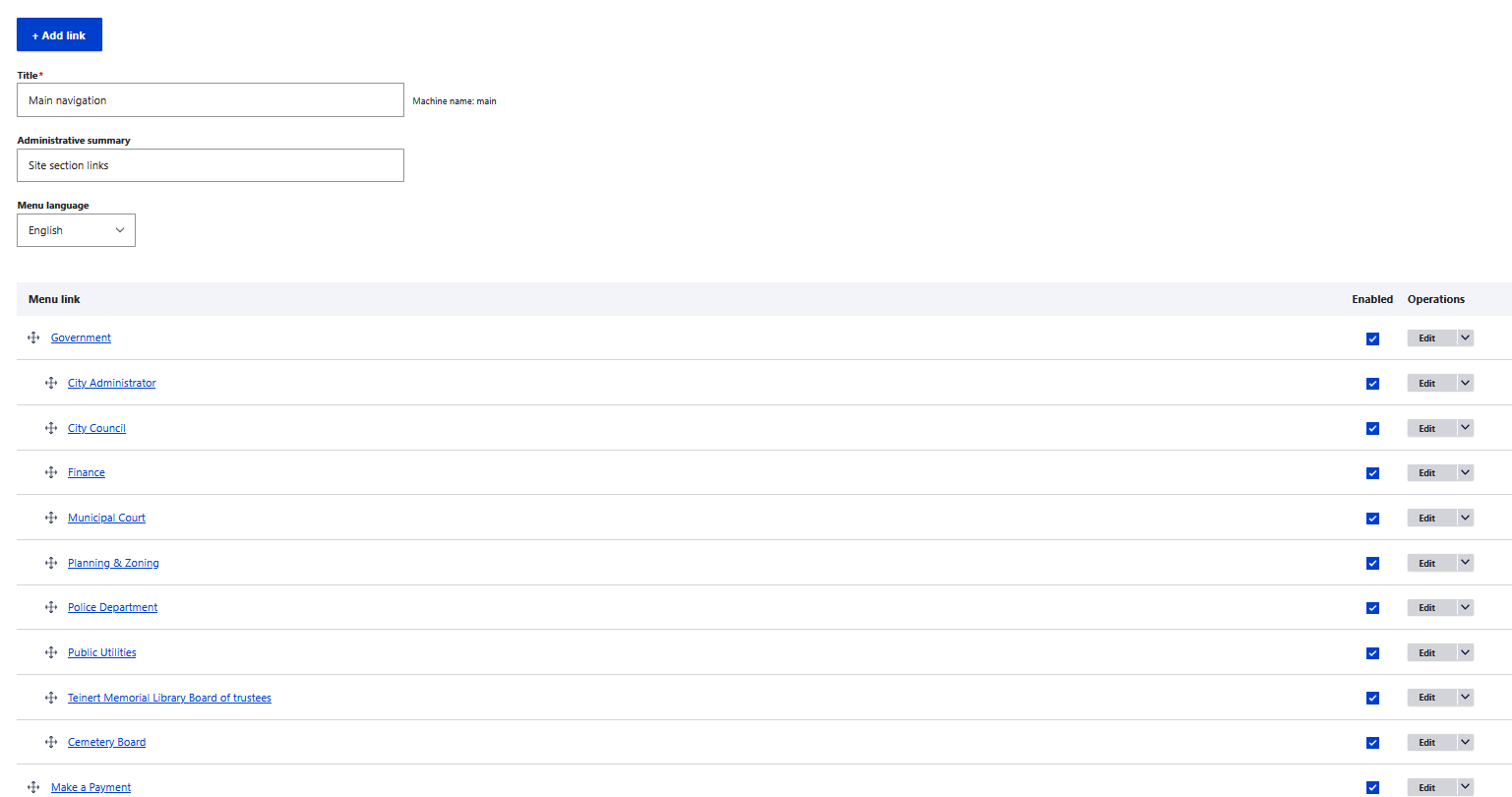
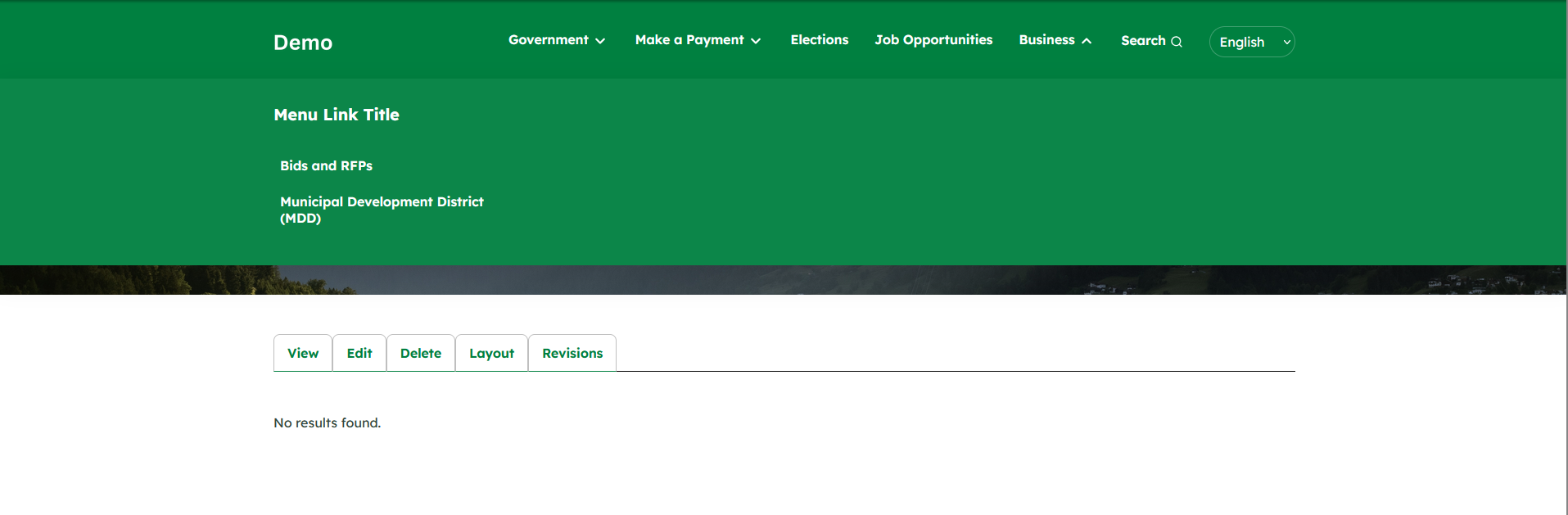
To create a parent group that is not clickable, click on + Add link. Then choose a name for the Menu link title and type <nolink> in the link section. (if you want it to be clickable just use a link as oppose to <nolink>, such as /government, /citycouncil, etc...
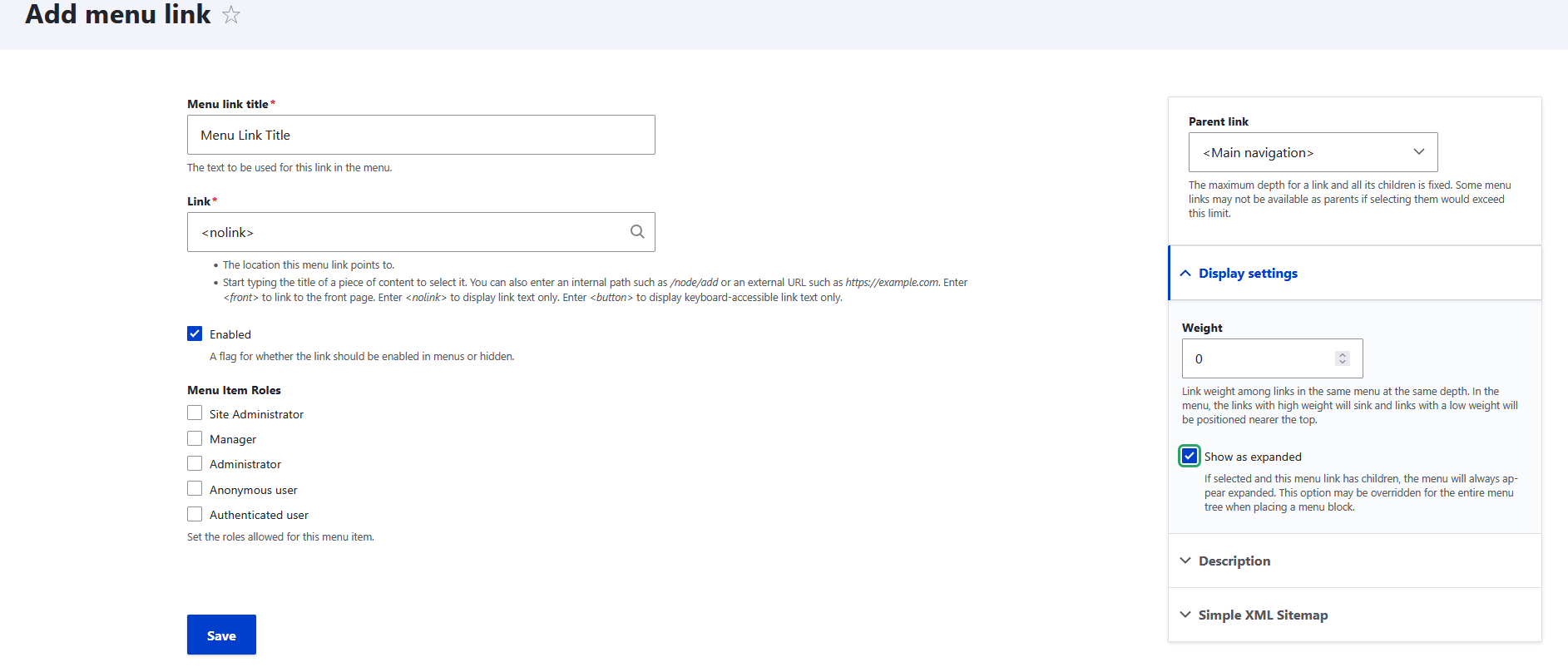
Then Drag menu that you want to be under the new created group in this case Menu Link Title is the child of business and is the parent of bids/rfps and mdd

This is how it would look like